
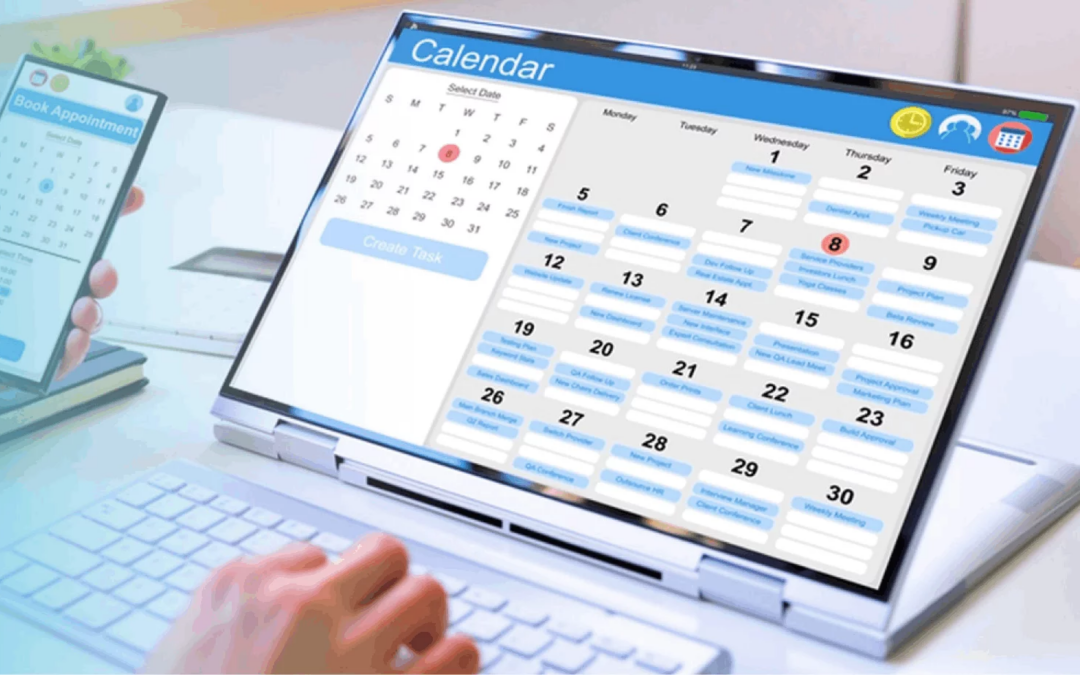
Have you ever lost time to back-and-forth emails trying to set a single appointment?
Calendar & Appointment Scheduling Services
Scheduling tools change how you manage time, whether you’re running a small side hustle, consulting from home, or coordinating a remote team. This guide walks you through appointment booking basics, advanced scheduling automation, key integrations (Google Calendar, video conferencing, Stripe), security and compliance, and practical tips tailored to seniors and beginners who want simple, profitable work-from-home setups. You’ll also find comparisons of Calendly, Acuity Scheduling, and Google Calendar scheduling features, customer stories, and actionable steps to get started with online scheduling today.
Why appointment scheduling matters for you
Using a modern scheduling service saves time, reduces no-shows, and creates a better client experience. For seniors or anyone running a small home-based business, that means fewer interruptions, more predictable revenue, and less technology stress. Scheduling services convert messy email threads into a single booking link, automate confirmations and reminders, and attach intake forms or payment collection to every appointment.
Core components of modern scheduling services
Understanding these building blocks helps you choose and configure the right tool for your needs.
Appointment booking and booking links
Appointment booking is the core: you publish a booking link or page your clients use to choose a slot. Booking links let you share one-click scheduling via email, text, or your website. You control which event types appear and which calendar they sync to.
Availability settings
Availability settings let you define when you’re bookable—working hours, buffer times before/after appointments, minimum notice, and maximum bookings per day. These settings prevent overbooking and protect your personal time.
Event types
Event types are templates for appointments, like “30-minute consult,” “60-minute home visit,” or “Group class.” Each type can include custom intake questions, pricing, duration, and location (in-person or video).
Recurring appointments
If you offer weekly lessons, therapy sessions, or subscription-based check-ins, recurring appointments automate the scheduling of repeated sessions so you don’t have to create each instance manually.
Custom intake forms
Intake forms collect essential client information during booking—health notes for caregiving, service preferences for hair appointments, or simple contact and billing details. These feed into your calendar invite and client records.
Automated reminders and no-show protection
Automated reminders (email and SMS) reduce late arrivals and no-shows. No-show protection combines reminders with deposit or prepayment options via Stripe integration to secure appointments financially.
Calendar management
Calendar management is about keeping all your appointments in one place—syncing booking tools with your Google Calendar, Outlook, or Apple Calendar so personal and work commitments don’t conflict.
Scheduling automation and integrations
Automation and integrations make scheduling powerful. Instead of manual tasks, you get workflows that protect your time and professional image.
Google Calendar integration
Google Calendar is a common backbone for scheduling systems. Syncing booking tools with Google Calendar ensures booked appointments appear instantly, prevents double-booking, and lets you use Google Meet as the conferencing option.
Video conferencing integrations
Integrate with Zoom, Microsoft Teams, or Google Meet so each booking creates a meeting link automatically. This keeps the virtual meeting link in the calendar invite and the confirmation emails you send clients.
Stripe integration (payments)
Stripe integration lets you collect deposits, full payments, or subscription fees during booking. Charging a fee reduces no-shows and streamlines invoicing—useful when you need payment protection for short-notice appointments or premium services.
Scheduling automation (workflows)
Automations can confirm bookings, send reminders, add notes to CRM tools, assign team members based on availability, and follow up after appointments with surveys or invoices. These reduce repetitive admin work.
Integrations ecosystem
Look for tools that connect to CRMs, email marketing platforms, payment gateways, video tools, and calendar apps. Zapier and native integrations multiply what your scheduling service can do.
Comparison: Calendly, Acuity Scheduling, and Google Calendar Scheduling
Below is a practical comparison to help you choose. This table summarizes common needs like automated reminders, video conferencing, Stripe payments, intake forms, recurring appointments, and enterprise security.
| Feature / Tool | Calendly | Acuity Scheduling | Google Calendar Scheduling |
|---|---|---|---|
| Appointment booking & booking links | Yes – easy public link | Yes – highly customizable booking pages | Basic booking via appointment slots / Google Workspace |
| Availability settings | Robust (buffers, min notice) | Very granular, location-specific | Basic working hours & slots |
| Event types | Flexible, multi-event types | Advanced; package deals & classes | Limited compared to dedicated tools |
| Recurring appointments | Yes | Yes, with packages | Limited |
| Custom intake forms | Yes | Advanced custom forms & intake flows | Minimal |
| Automated reminders | Email/SMS (paid SMS) | Email/SMS (paid) | Only basic notifications |
| Video conferencing | Zoom, Teams, Meet integrations | Zoom, Meet, integrated conferencing | Google Meet native |
| Stripe integration | Yes | Yes (good payment features) | No native Stripe (use integrations) |
| No-show protection | Payments, buffer & policies | Deposits & packages | Limited |
| Multiple location management | Supported | Strong multi-location features | Limited |
| Pricing plans (free vs paid) | Freemium, paid tiers add automation & integrations | Freemium/trial; paid adds payments, packages | Included with Google Workspace (paid tiers) |
| Enterprise-grade security & compliance | Enterprise plans available | HIPAA options for paid tiers | Google Workspace enterprise security |
| Best for | Solo pros to teams who want simple UI | Service businesses needing rich forms & payments | Google users wanting lightweight scheduling |
Use this as a guide—feature availability and exact pricing change, so check current plans when you decide.
Free vs paid plans: when to upgrade
Choosing between a free plan and a paid one depends on your needs.
- Use free plans if: you only need basic booking links, one event type, and limited integrations. Good for hobbyists or very small schedules.
- Upgrade when you need: multiple event types, calendar buffering, automated SMS reminders, intake forms, Stripe payments, team scheduling, or enterprise security. Paid tiers unlock advanced automation and no-show protection.
For seniors running a simple home business or offering a few consults per week, the free tier might suffice at first. As your client base grows or you require payments and intake forms, a paid plan becomes worth the investment.
User experience design in scheduling tools
Good UX matters—especially if you’re teaching clients to book online or if you prefer a simple interface.
Clarity, minimal friction, and accessibility
Booking flows should minimize fields and steps. Clear labels, accessible fonts, and mobile-responsive pages improve conversion rates. Your clients should be able to complete a booking on a phone in under a minute.
Configurable confirmations and communications
Personalize confirmation emails and reminders so clients get exactly what they need: directions, intake form links, or prep instructions. This improves client experience and reduces confusion.
Senior-friendly features
Choose tools with large fonts, clear buttons, and straightforward language. Offer a phone number or short instructions for clients who prefer calling, and include a step-by-step booking guide on your website (SeniorWorkHub step-by-step ebooks can help you create these guides).
The impact of scheduling services on remote work
Scheduling platforms are vital to successful remote work and distributed teams.
Time zone handling and centralized scheduling
Good tools detect time zones, show client-visible times in the client’s local time, and centralize bookings for multiple team members. This reduces errors and makes remote service consistent.
Productivity gains and case studies
Case study example: a retired consultant started offering virtual 45-minute sessions using Calendly. Automating bookings and reminders cut admin time by 60% and increased billable hours 20% in three months. Another example: a virtual caregiver used intake forms in Acuity Scheduling to gather medical details before calls, shortening sessions and increasing client satisfaction.
These are typical outcomes because automation removes repetitive tasks and ensures bookings are accurate and timely.
Customer stories
Real-world stories illustrate practical benefits.
- Mary, a retired music teacher: She used Calendly’s free plan to sell 30-minute online lessons. With booking links and automated confirmations, she doubled weekly lessons and felt confident managing schedule conflicts.
- David, a senior fitness instructor: He used Acuity Scheduling to sell class packages and collect payments via Stripe. Pre-class intake forms collected health information, improving safety and client trust.
- A small home-care agency: They adopted enterprise-grade scheduling with calendar management across multiple locations and compliance audits capability, reducing double-bookings and improving reporting for regulators.
These stories show how booking links, intake forms, automated reminders, and payment integrations combine into smoother client experiences.
Security, data governance, and compliance audits
Security matters—especially if you collect personal or health data.
Enterprise-grade security and security integrations
Top scheduling platforms offer enterprise-grade security: SSO (single sign-on), audit logs, two-factor authentication, and integrations with identity providers. These features are crucial if you manage many clients or staff.
Data governance and compliance audits
Data governance features include data export, retention policies, role-based access control, and exportable logs—necessary for compliance audits and regulatory requirements (for example, HIPAA for healthcare providers). If you handle sensitive client data, choose a provider that supports compliance or offers a HIPAA-compliant plan.
Practical advice
For seniors running low-volume services, focus on encrypted communication (TLS), secure password practices, and minimal data collection on intake forms. If you require advanced compliance, consult a vendor’s security documentation and consider enterprise plans.
Multiple location management and industry customization
If you manage services across locations or niches, scheduling tools can adapt.
Multiple location management
Multiple location management assigns staff and resources to specific physical places. This is essential for home-care services, community classes across centers, or pop-up events.
Customization by industry
Different industries need tailored features:
- Healthcare: HIPAA options, custom intake forms, telehealth integrations.
- Beauty & personal care: resource scheduling (rooms, equipment), package deals.
- Education: recurring appointments, group classes, student rosters.
- Senior services: home visit routing, caregiver availability, previsit intake.
Tools like Acuity Scheduling often offer deeper industry-specific customization; Calendly favors simplicity and ease of use across industries.
AI integration for enhanced scheduling
AI is transforming scheduling with smarter automation.
What AI can do for you
- Smart availability: AI predicts optimal booking slots based on past patterns and preferred times.
- Automated rescheduling: AI suggests alternate options gracefully when cancellations happen.
- Intelligent routing: For teams, AI assigns bookings to the best team member based on skills and load.
- Natural language booking: Clients can type a preferred time in plain language and let AI parse it into a booking.
- Follow-up automation: AI crafts follow-ups and post-appointment summaries.
Practical use cases for seniors
AI can remove friction by suggesting ideal appointment times your clients are likely to accept, or by summarizing session notes after an appointment so you don’t have to type everything.
How to pick the right scheduling service (checklist)
Use this checklist to evaluate options:
- Do you need payment collection (Stripe)? Yes/No.
- How many event types and staff accounts do you need?
- Do you need intake forms and what fields are required?
- Is HIPAA or enterprise-grade security necessary?
- Will you offer video meetings? Which conferencing platform do you prefer?
- Do you need multiple location support?
- What’s your budget for monthly or annual fees?
- Are automated reminders and SMS required to reduce no-shows?
- Do you prefer a simple UI (Calendly-like) or a highly customizable platform (Acuity-like)?
- Will AI features or advanced automations be useful to you?
Pricing plans: free vs paid — practical differences
Here’s a condensed look at typical pricing tiers and the value they provide. Exact prices change, but feature trends are stable.
| Plan Type | Typical Features | Good for |
|---|---|---|
| Free / Basic | One event type, basic booking link, calendar sync | Beginners, hobbyists, testing |
| Individual / Starter | Multiple event types, basic reminders, more integrations | Solopreneurs, teachers |
| Professional | SMS reminders, payment integrations (Stripe), custom forms | Small businesses, paid services |
| Team / Business | Round-robin, team pages, advanced analytics | Multi-staff operations |
| Enterprise | SSO, audit logs, compliance, dedicated support | Agencies, regulated businesses |
Start with a free tier to learn the workflow. Move to paid plans when you need payments, intake forms, or professional reminders—these features often pay for themselves by reducing no-shows and administrative hours.
Implementing scheduling for your side hustle (step-by-step)
Here’s a streamlined plan for seniors or beginners to set up online scheduling:
- Identify services you’ll offer (event types: consult, trial lesson, check-in).
- Choose a calendar backbone (Google Calendar is simple and popular).
- Pick a scheduling tool (Calendly for simplicity; Acuity for payments and intake forms).
- Create availability: block off non-working hours, add buffers, set min notice.
- Build event types: duration, price, intake questions.
- Integrate video conferencing (Zoom or Google Meet) and payments (Stripe).
- Add automated reminders (email + SMS if possible).
- Create booking links and place them on your website, email signature, or social media.
- Test the whole flow with a friend or family member.
- Share booking links with clients and monitor for needed adjustments.
If you want a guided format, SeniorWorkHub step-by-step ebooks provide beginner-friendly instructions tailored to seniors: https://seniorworkhub.com/courses/
Best practices to reduce no-shows and improve client experience
- Use automated email and SMS reminders 24 hours and 1 hour before the appointment.
- Require a small deposit through Stripe for high-value or short-notice slots.
- Add clear cancellation policies and minimum notice requirements in booking confirmations.
- Collect key information with custom intake forms to make appointments efficient.
- Use buffer time to avoid running late from one appointment to the next.
- Keep your booking page simple with clear event descriptions and preparation notes.
- Offer multiple booking channels: a booking link, embedded calendar on your site, and an option to book from your social pages.
Common pitfalls and how to avoid them
- Overcomplication: Too many questions in intake forms can deter bookings—ask only what you need initially.
- Calendar conflicts: Always enable two-way sync with your calendar to prevent double-booking personal commitments.
- Hidden fees: Understand SMS or conferencing add-on costs—budget for them if reminders and video calls are critical.
- Security blind spots: If you handle sensitive data, verify the vendor’s compliance statements and consider higher-tier plans.
Final recommendations
For most seniors starting a home-based service:
- Start with Google Calendar and Calendly’s free plan for simple booking links.
- Move to Acuity Scheduling when you need detailed intake forms, packages, or Stripe payments.
- Use automated reminders and optional deposits to reduce no-shows.
- Prioritize UX: make booking easy on mobile and provide clear, short instructions for clients who prefer phone support.
- If you handle sensitive data, seek enterprise-grade security or HIPAA-compliant plans.
- Consider AI-enhanced tools as your bookings scale for smarter routing and time optimization.
Don’t forget the step-by-step guides available at SeniorWorkHub to help you get set up without technical headaches: https://seniorworkhub.com/courses/
If you want, I can:
- Suggest a tool based on your exact service and budget;
- Create a sample booking page and intake form tailored to your business;
- Walk you through integrating Google Calendar, Stripe, and Zoom step-by-step.
Which part would you like help with first?